Import the file
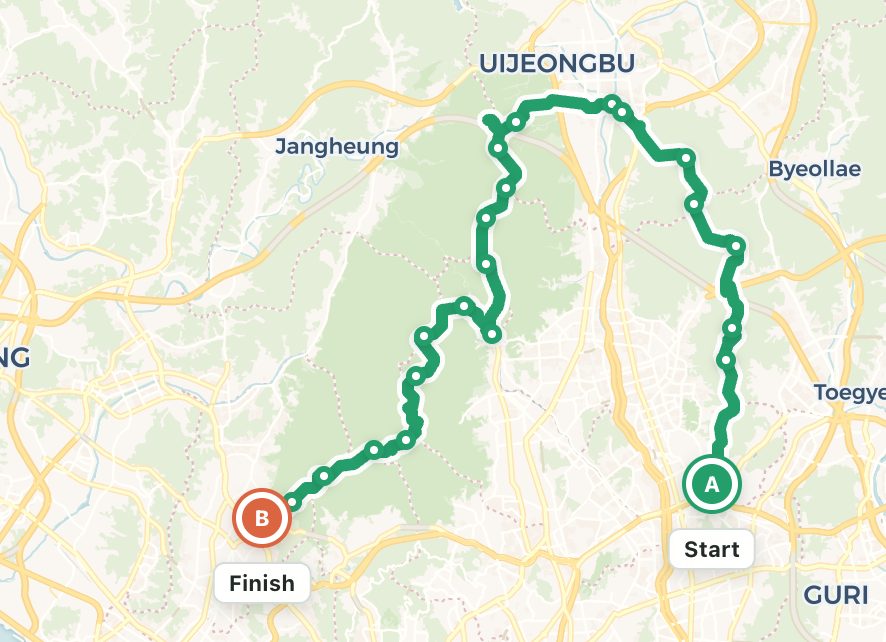
Open GPX Hub, choose a GPX file, and fit the complete route on the map. Check its start, finish, distance, and segments.
 GPX Hub
A practical guide to cleaning GPS tracks, adding useful route information, checking elevation, and preparing files for running, cycling, and hiking devices.
Keep the original file as a backup, then follow these steps in the browser.
Open GPX Hub, choose a GPX file, and fit the complete route on the map. Check its start, finish, distance, and segments.
Select the track, zoom into incorrect sections, drag misplaced points onto the correct path, and remove isolated GPS spikes.
Add waypoints or elevation when needed, save with a new file name, and reopen the result before transferring it to another app or device.
Buildings, valleys, forests, and tunnels can cause recorded points to jump away from the real path.
Drag the point when the recording order is correct but its coordinates sit beside the road or trail. Keep curves smooth between the neighboring points.
Delete an isolated point when it produces an unrealistic triangle. After deletion, verify that the new line between adjacent points does not cut across terrain.
GPX elevation values may come from a GPS sensor, a barometer, or a terrain model—and they will not always match.
Use Fill Elevation when the file has no elevation or every point is near zero. The route coordinates are sent to the elevation provider and returned values are written to the track.
Move across the elevation chart and compare the indicator with the map. Sudden large changes can reveal a misplaced track point, bridge, tunnel, or terrain-model limitation.
Elevation gain differs among Strava, Garmin, watches, and GPX tools because each service uses different sources and smoothing rules. Compare the shape and major climbs rather than expecting identical totals.
Waypoints are named locations such as water stops, summits, trail junctions, parking areas, or hazards.
Choose Add Waypoint, click the correct location, and use a short name that remains readable on a small GPS screen. Confirm that the marker aligns with the route distance and elevation. Device support varies: some Garmin workflows import GPX waypoints as saved locations rather than course points.
An activity recording and a navigation route serve different purposes.
Edited activity files can retain timestamps that no longer match the changed geometry. Treat the edited copy primarily as a route for planning and navigation, not as a replacement for the original performance record.
Long recordings may contain tens of thousands of points.
Split a track to remove private start and finish sections or separate multiple days. Simplify a copy to reduce redundant points while preserving turns, junctions, and switchbacks. Always compare distance and route shape after simplification, and test the saved file in the intended GPS device before an activity.